Online Privacy for Students in a Digital Age

When I taught Grade 8 English, I always had my students write an autobiography at the beginning of the year to learn more about them. This past year I added a media focus by having students design a digital poster to represent themselves. The software to be used was left wide open – students could use anything from Microsoft Publisher to online digital poster software to simple Paint.

I even gave student the option to publish their work online as visual resume or an About.me page. My intention for this online option was to encourage students to begin building a positive online presence. It was not mandatory, but rather an option and platform for the students to showcase their accomplishments.

See my lesson instructions here:

We spoke as a class about what is and isn’t appropriate to post online.

However, I received mixed reactions from parents and my peers. Was this still too much information for students to post publicly? Should students under a certain age be anonymous on the internet? Should such online behaviours be encouraged by a school?

Where do we draw the line between creating a positive digital footprint and protecting children from the dangers of the internet? 

In a school which introduced a 1:1 laptop program and supports a tech-infused learning community dedicated to the principles of the International Society for Technology in Education (ISTE), these are critical questions to be asked. And it seemed that no one knew the answers.

My classroom project sparked a lively debate among educators at my school concerning what the students should and should not be doing online. On one side, it is important for schools to protect students from the dangers of the internet. On the other side, I think we could all admit that students with their own laptops and a constant wifi connection are visiting whatever sites they wish.

Instead of hiding children from the internet, I feel it’s the role of the school to educate students on safe online behaviours.

We can never teach someone swim from the deck of the pool. We of course shouldn’t push them into the water with no previous guidance, but instead assist them into the water with a suitable knowledge of what to do once in the water and how to react to unfavourable situations.

From my experience, educators often prematurely give students full reign of the internet after deciding technology is a beneficial tool for education. We essentially pushed students into the deep end without the necessary skills needed to stay afloat. Students need to be explicitly taught digital citizenship and have their online actions closely monitored while they are still learning appropriate online behaviour.

See my follow-up lesson on online privacy here:

Please feel free to use any of these resources in your own teaching of online safety.

This Post is Licensed for Noncommercial Reuse..

It is my school’s policy that students and teachers use only copyright-free material. This makes sense hypothetically, but what does it actually mean? Where could this mysterious content be found?

After asking around, it became clear to me that copyright-free material was not understood by many other teachers as well. So how could we possibly teach and model finding such content for our students? Although it was part of my job to ensure students were only using copyright-free material, I knew very little myself about what can and cannot be used nevermind how to monitor this from my students.

However, teaching in a technology-focused school means the students use digital technology to create many of their projects. They take images, video clips, sound bites and more from the internet and to create their own products on a regular basis.

I decided to make it my mission to learn about copyright licensing alongside my students.

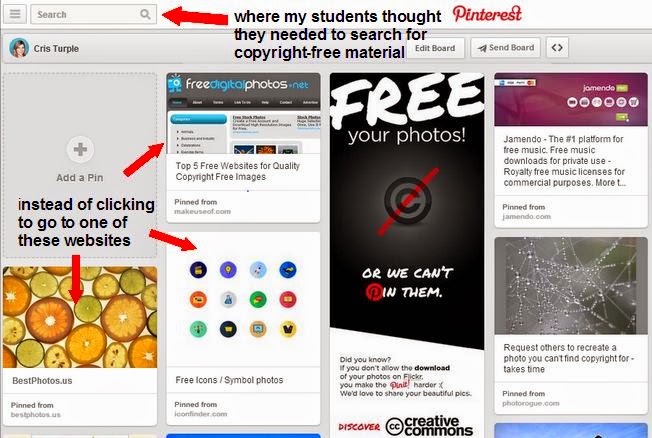
First, I compiled a list of websites with copyright-free material. I sent students to my Pinterest board of copyright-free resources.

However, my students thought Pinterest itself was all copyright-free material which could not be further from the truth. I witness numerous students searching for “copyright-free” content using the search bar of Pinterest!

I can see now why the students were confused.
So next, I modeled finding content using the Creative Commons website. This search engine links to various copyright-free sites. But students still struggled with the specific options on the different websites.
Luckily Creative Commons has a great resource to explain what each of the copyright permissions mean:

Blended Learning: Learning Management Systems

This hybrid method of learning combines traditional classroom and online education. Blended learning has emerged with the advancement of new technologies in an effort to reach and teach students more effectively.

While educators may debate the exact meaning of the term, the gist is that online technology is used not just to supplement, but transform and improve the learning process.

The Ontario Ministry of Education explains the tools used to create Blended learning should help students:

  • learn or review key concepts
  • stay organized
  • communicate with others
  • show what they have learned
  • submit assignments
  • track achievement

The website further states, “Blended learning uses the tools of the provincial learning management system (LMS) to teach and support learning in a face-to-face class.” Thus, technology used to support Blended Learning not just technology tools which can be used in the classroom, but online learning platforms meant to support traditional classroom learning.

The goal is to use technology to build an online learning community that transcends the walls of the classroom so students can continue their learning outside the classroom.

Click here for my comparison of various Learning Management Systems (LMS) to Support Blended Learning


Email ThisBlogThis!Share to TwitterShare to FacebookShare to Pinterest

The Ontario College of Teachers Standards

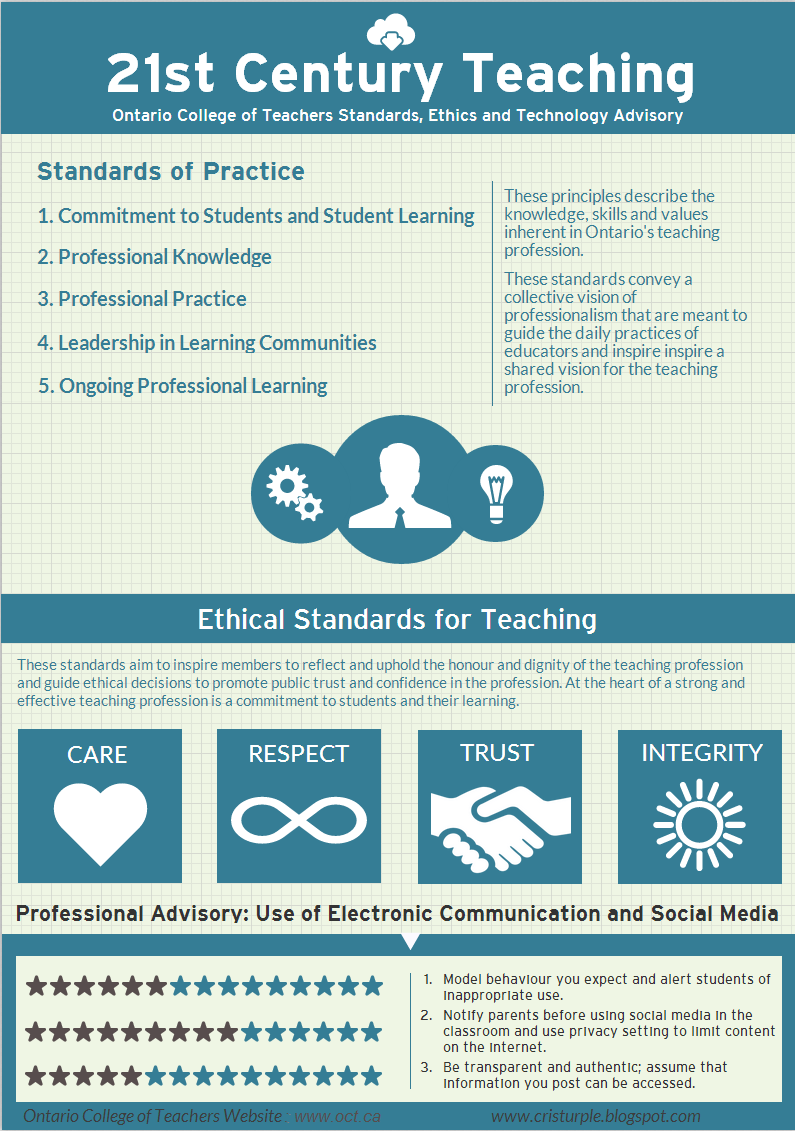
The Ontario College of Teachers has professional guidelines and standards for educators to follow.
See below for my visualization of the standards as well as a summation of the Professional Advisory surrounding electronic communication and social media:

21st Century Tools: The Role of the Teache

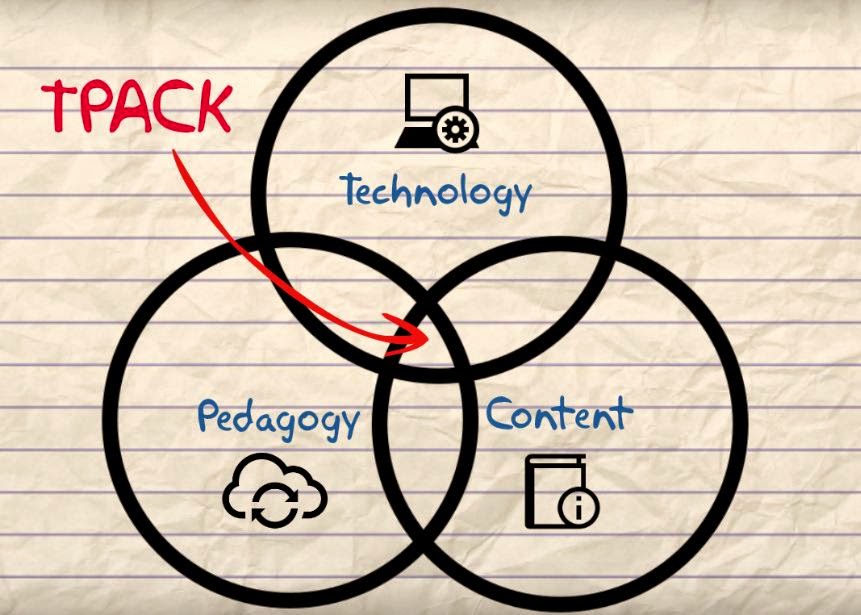
Once again, I refer to Dr. Matthew J. Koehler’s model of TPACK to conceptualize the interconnected and overlapping realms of teacher knowledge. The question posed is concerning the role of the teacher as it pertains to learning and understanding 21st century tools.

The TPACK model shows a breakdown of the areas of expertise teachers are expected to know, including content knowledge, pedagogical knowledge and technological knowledge. According to this model, teachers should strive to reach the middle area where all three realms overlap.

Content Knowledge: this is the information on the subjects we teach.
But I think we can all agree that being an expert in a field does NOT necessarily equate to being a good teacher.

Pedagogical Knowledge: this is ‘the art of teaching’.
It includes such things as taking into consideration learning styles, differentiating instruction, creating a classroom environment and assessment practices. Basically, its your philosophy of education.

Technological Knowledge: this is the tools used to teach.
Today, many people’s immediate thoughts are of modern technologies. However, it can also includes things as simple as a pencil or a calculator.

The overlapping area between content and pedagogy covers the core business of teaching. It is what to teach and the best way to teach it. However, it is often the third realm of technology with its overlapping areas that tends to be the most challenging for teachers.

It’s true, that technology is advancing at exponential rates and there’s no way any one person could keep up with it all.

So how should teachers face the daunting task of learning and teaching with 21st century tools?

First, teachers should remember that technology (including new computer-related software and hardware) are merely tools to use to support student learning. The foundation of teaching still lies in a teacher’s knowledge of the content and their own personal teaching pedagogy. Effective technology integration does not consist of using it as a gimmick or reward for students. Instead, technology should be utilized as a teaching tool for lessons firmly rooted in calculated pedagogy and closely linked to content and curriculum outcomes.

Second, it’s important for teachers to realize that they only need to know enough about new technologies to integrate it into their specific classroom – the same way that we only use teaching practices which fit our pedagogy and content knowledge which relates to our subject. Teachers do not need to be tech experts to effectively use technology in the classroom. Instead, the best 21st century educators know of a tools which fits the context of their teaching, some basic skills of how to use and tool, as well as the courage to try it out!

Third, teachers should remember that a proper education in the 21st century must include teaching and learning with new technology. Educators must equip students with technological skills to be digital citizens and successful in the world. It is the role of the teacher to learn alongside his or her students as technology advances to guide students on their journey and model self-sufficiency when learning about new technologies.

Learning Skills and Work Habits: Tech Tools for Tracking Student Behaviours

The first statement of the Learning Skills section of the Ontario Ministry of Education’s publication Growing Success: Assessment, Evaluation, and Reporting in Ontario Schools states, “The development of learning skills and work habits is an integral part of a student’s learning” (p. 10).

Teachers are expected to report on six categories:
            • Responsibility
            • Organization
            • Independence
            • Collaboration
            • Initiative
            • Self-Regulation
Learning Skills should not be considered in the determination of a student’s grades. Instead, the assessing, evaluating, and reporting on the achievement of curriculum expectations and on the demonstration of learning skills should be done separately.
Though some may identify other skills as being crucial to student success, it is clear that a student’s work habits significantly contribute to their success in school and for life beyond the classroom.
The Definition and Selection of Competencies (DeSeCo) Project, sponsored by the Organisation for Economic Co-operation and Development (OECD), has underlined the importance of identifying and developing key competencies as follows:

Globalisation and modernisation are creating an increasingly diverse and interconnected world. To make sense of and function well in this world, individuals need, for example, to master changing technologies and to make sense of large amounts of available information. They also face collective challenges as societies – such as balancing economic growth with environmental sustainability, and prosperity with social equity. In these contexts, the competencies that individuals need to meet their goals have become more complex, requiring more than the mastery of certain narrowly defined skills.

(OECD, p. 4)

We are preparing students for an information saturated world where they will need to be self-directed learners with the skills to collaborate with others, are organized, have initiative, and set and monitor personal goals. As educators it is our responsibility to foster and help develop these skills in our students.
When it comes time for report card data entry, our tracking should be consistent and accountable to result in accurate reporting of students’ learning skills and work habits.
The following are three simple tools for tracking students behaviours for the reporting of learning skills:

See the slides here.

Reaching the Visual Learner: Software to Create Digital Posters or Infographics

Ever find yourself drawing incomprehensible doodles as you attempt to explain an idea to a student? I do all the time.

There is no doubt in my mind that I am a visual learner. I see this come out in my teaching, as I break down complicated ideas for my students in the same way I did to make sense of it for myself. Taking large amounts of text and synthesizing those ideas to create an aesthetically pleasing, symbol-saturated visual representation is something I truly enjoy doing.

Source: OnlineCollege.org

See my Pinterest board for resources to make digital posters or infographics as well as editing programs for photo manipulation:

Cris TurpleDigital Posters/InfographicsFollow On

Email ThisBlogThis!Share to TwitterShare to FacebookShare to Pinterest

Flipping the Classroom: Don’t Re-Invent the Wheel, Find Pre-Made Video Resources Online

There has been a lot of talk lately around the theory of ‘flipping the classroom’. Essentially, students preview lesson material and lectures at home to make time to do more hands-on, collaborative activities in class.
Watch the following short video or view this infographic for more details.
Source: Center for Teaching and Learning

However, what teacher has the time to create a high quality video for each lesson?

Allow me to be so bold as to say: no teacher.

Though I have seen success from teachers who simply record themselves teaching a lesson at the front of the class or from an aerial view then posting it in a place students can access such as on YouTube or school LMS. This simple act allows the student to pause or rewind any confusing parts of a lesson which promotes self-regulation in the learner.

Further, I have also seen success from teachers who record their screens during a lesson using tools such as EduCreations or the recording feature on SmartBoards. What’s great about this format is the accompanying online learning community of educators who have posted their own lessons to share. You could further check out places such as OpenEd or Share My Lesson for lesson sharing in a video format.

Flipping the classroom has many benefits: instead of students listening to a transmissive, passive lecture, teachers can utilize the collaborative environment of the classroom by guiding cooperative and exploratory tasks. It also frees up the teacher’s time to provide personalized instant feedback to students and differentiate instruction by pulling small groups of learners to work with.

However, there are many problems to the flipped classroom as well. What if the students don’t do their homework? What if there were technology issues? What if every subject teacher expected a student to learn lesson content the night before (how many hours of homework is that??)

The more prominent downfall I spotted in my sideline analysis of the flipped classroom is that student grew tired of the format. Making an educational video entertaining is a hard feat! Creating even a simple animation or instructional video to accompany or substitute a face-to-face lesson takes much effort and time on the teacher’s part.

What I realized is that I did not have to create the video myself – what it came down to is finding the best resource to fit my teaching needs. Why re-invent the wheel? Luckily there are many free educational video resources available online.

Cris TurpleVideo Resources for LessonsFollow On

I’ve also learned when it comes to the flipped classroom, as with anything, it works best in moderation. I appreciate many educational benefits to ‘flipping the classroom’. But I also am going to teach a lesson in the format which I feel worked best for the topic and my learning goals.

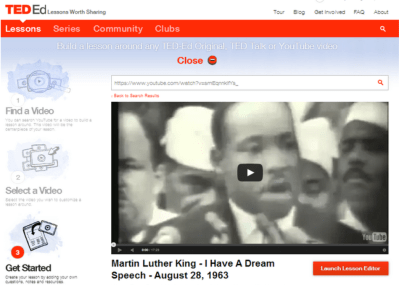
For instance, I chose to flip a lesson during a speeches unit I taught. In this lesson, I had students view Martin Luther King Jr.’s infamous “I Have a Dream” speech at home, identifying literary devices and observing the vocal skills used in the speech. By flipping the lesson, students could view the video as many times as they liked. For the in-class lesson, we discussed the answers in groups and as a class before viewing another video which deconstructs the speech.

I used the extraordinarily user-friendly site Ted Ed Lessons to create this lesson, along with embedded instructions, formative assessment , and discussion forum.

The website sends the lesson creator a link to view what students have started the lesson and to review progress. Other teachers can also customize the lesson to suit their needs.


Alternatives to PowerPoint: Web-Based Presentation Slide Programs

I used to teach Grade 8 English for 90 students. That meant whenever there were class presentations….I watched 90 of them. Thus, one would understand why I absolutely refused to let my students create boring, unengaging presentations using static, simple technology.

I didn’t restrict what software my students could use, rather I restricted what they couldn’t use by banning PowerPoint.

However, I learned as a teacher to be sure to direct students to programs that fit the criteria of the assignment. Since my oral presentation had to include a live speaking portion, students who chose the PowToons option were left starting and stopping their video. You can imagine how NOT smooth my nervous 13 year old students were in doing this in front of an audience of their peers.
When providing options for students to create a presentation, it makes sense to me to seperate technology by presentation slides and presentation videos.
See my review of various technology to create slides (could also be used as a student resource):

To create short videos or animations to accompany presentations, see my Pinterest board of Video Creation Resources:

Utilizing the Tech You Have: Mobile Devices in the Classroom

    1. Consider the digital divide – will some students be left out not owning a device?


    1. Co-create a clearly defined set of rules with students which compliments the school’s established Responsible/Acceptable Use Policy.


    1. Practice using devices in group settings first to ensure students are familiar with the technology and can effectively use it.


  1. Ongoing reflection of your teaching practice: Is the use of technology modifying or transforming the learning task?


There are many softwares which support the use of mobiles in the classroom. The following are not limited to use with mobiles, but can easily be integrated into a BYOD setting: